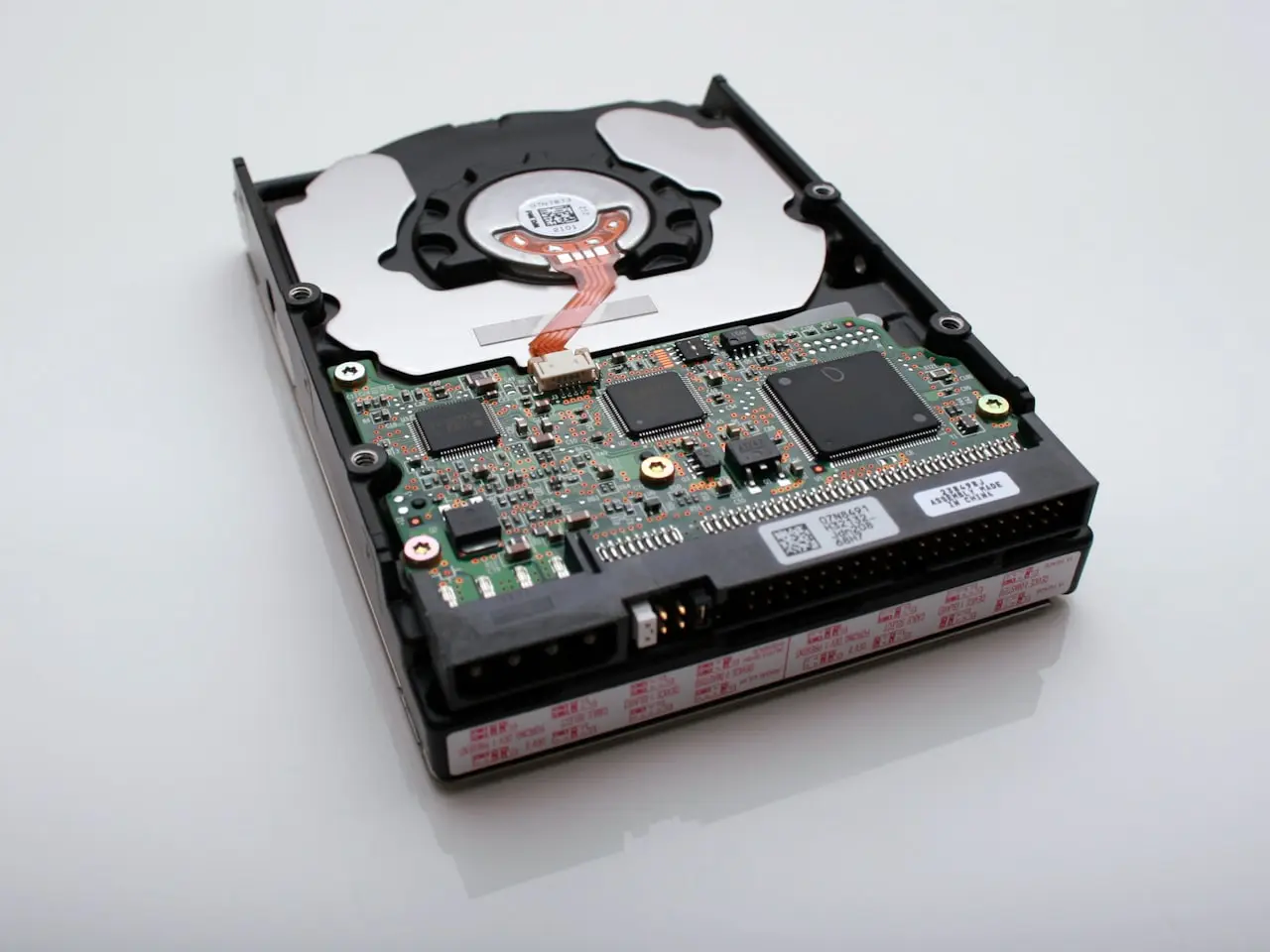
External Hard Drive Not Showing Up?
USB hard drive or SSD not showing in File Explorer or Finder — cable, power, Disk Management, Disk Utility, and how to get the files back without formatting.
An external hard drive not showing up — in File Explorer, Finder, or This PC — is usually the cable, USB power, a missing drive letter, or a damaged file system. The disk can still be spinning. Do not format it until you have seen it in Disk Management or Disk Utility.
This covers a portable HDD, an SSD in a USB enclosure, and brands that vanish the same way (including Silicon Power and other generic enclosures). The brand on the case matters less than whether the computer can see the disk at all.
Where to look when File Explorer is empty
Windows: right-click Start → Disk Management.
Mac: Spotlight → Disk Utility, then View → Show All Devices.
| Disk Management / Disk Utility | Meaning | Do this |
|---|---|---|
| Disk missing entirely | Cable, port, power, or a dead enclosure | Swap cable and plug in direct |
| Disk listed, no letter (Windows) | Partition is there, unmounted | Assign a drive letter — do not format |
| Disk listed as Unallocated | Partition table damaged | Stop; recover files before any format |
| “You need to format the disk” | File system Windows does not like, or it is corrupt | Cancel. Recover first |
A drive that appears in Disk Management but not in File Explorer is a mount problem, not a dead drive. A drive that appears nowhere, on two computers and two cables, is the enclosure or the disk itself.
1. Cable, port, and power (do this before software)
- Try a different USB cable (data-capable, not charge-only)
- Plug directly into the computer — no unpowered hub
- On desktops, prefer rear motherboard ports
- For drives with a wall adapter, confirm the PSU is seated and the outlet works
- Test on a second computer if available
Why this matters: flaky cables fake “dead drives” daily. Time Machine users hit this often: /posts/time-machine-not-backing-up-mac.
| Clue | Likely cause |
|---|---|
| No spin / no LED | Power path or dead enclosure |
| Spins, disappears after 5 seconds | Power sag, failing USB bridge, dying disk |
| Works on one PC only | Driver / port / OS format mismatch |
| Asks to format | File system / partition damage |
2. Windows: Disk Management before Format
- Right-click Start → Disk Management
- Look for the disk in the lower pane
- If it has partitions but no drive letter, right-click → Change Drive Letter and Paths → Add
- If it shows Unallocated on a disk that previously had data, do not create a new volume yet — recover first
- If Windows says RAW or prompts to format, cancel and jump to recovery
Update USB drivers via Device Manager (Universal Serial Bus controllers): uninstall the device, reboot, let Windows reinstall — or install chipset/USB updates from your PC maker.
Internal SSD not detected is a sibling checklist: /posts/ssd-not-detected.
3. Mac: Disk Utility and First Aid
- Open Disk Utility (View → Show All Devices)
- See whether the physical disk appears even if the volume does not mount
- Select the volume → Mount if available
- Run First Aid
- If the disk is Windows NTFS, macOS may see it as read-only or need third-party drivers depending on your setup — that can look like “not showing” in casual Finder use
What NOT to do: click Erase because Finder is empty. Empty Finder with a visible Disk Utility entry is often a mount/format problem, not permission to wipe.
4. File system mismatches
| Format | Windows | macOS |
|---|---|---|
| NTFS | Native | Limited without extras |
| exFAT | Fine for many | Fine for many |
| APFS / HFS+ | Needs special software | Native |
| RAW / unknown | Recover, don’t format | Same |
A drive that “vanished” after being used on the other OS is often still there — wrong expectations, not failure.
5. Enclosure vs disk
USB-C/SATA enclosures fail independently of the platter/NAND:
- If comfortable, test the bare 2.5”/3.5” drive in another known-good enclosure or dock
- NVMe enclosures must match the drive’s keying and USB bridge quality
- Cheap bridges drop large drives or sleep them to death
If the disk works in a dock but not the old box, keep the dock and retire the enclosure.
6. Data-first recovery rules
Stop writing to the drive when:
- Capacity shows as 0 bytes
- Format prompts appear
- Folders vanish intermittently
- S.M.A.R.T. tools report reallocated sectors / failures
Use reputable recovery software read-only style workflows, or a lab for clicking HDDs. Do not run chkdsk / First Aid repeatedly on a mechanically failing disk if files are priceless — imaging first is the pro move.
7. When to stop DIY
- Clicking, grinding, or repeated reconnect sounds
- PCB burn marks / liquid on the USB board
- RAID/enclosure systems with multiple disks
- Business data with legal retention needs
Internal detection failures after laptop drops or liquid are different urgency — Mac liquid: /posts/macbook-liquid-damage-what-to-do-first.
Quick order of operations
- New cable + direct port + power brick
- Second PC test
- Disk Management / Disk Utility visibility
- Assign letter / Mount / First Aid
- Recover if RAW/format prompt
- Replace enclosure or drive only after data plan
Prove power and cables, look at the disk tools the OS already has, and refuse format dialogs until your files are safe. Most “missing” externals are unmounted or underpowered — treat the rest like a data incident, not a quick erase.
BitLocker, FileVault, and password-locked volumes
A drive can be healthy but invisible until unlocked. On Windows, check for BitLocker unlock prompts in File Explorer. On Mac, encrypted APFS volumes need the password in Disk Utility. Forgotten encryption passwords are a data problem, not a cable problem.
Desktop vs laptop USB power
Some laptop USB ports suspend power aggressively. Try:
- Device Manager → USB Root Hub → Power Management — uncheck “allow computer to turn off” temporarily for testing
- A powered hub for multi-drive desks
- A wall-powered drive instead of bus-powered 2.4-inch HDDs on weak ports
Time Machine and Spotlight side effects
On Mac, a Time Machine disk may mount then busy itself with indexing. If Finder stalls when the disk connects, wait, or exclude the disk from Spotlight privacy temporarily while you verify files. Backup troubleshooting: /posts/time-machine-not-backing-up-mac.
Cloning before repair experiments
If the disk mounts read-only or intermittently, copy critical folders immediately to a second drive. Do not run experimental partition repairs as the first step when the wedding photos are on it. Recovery tooling first, structure repairs second.
Enclosure PCB failure patterns
Sudden failure after a tug on the cable often kills the USB bridge board, not the NAND/platters. If you smell ozone or see a scorch mark at the USB jack, stop applying power and move to a known-good bridge/dock.
Desk setup tip
If you use an HDMI monitor and still want one-cable charging on a MacBook, I recommend a detachable magnetic VENTION 6-in-2 USB-C hub on Amazon (PD up to 140W, high-refresh HDMI on supported sets) so you can leave the desk without unplugging a pile of dongles.
Frequently Asked Questions
Why does my external drive spin but not appear?
Often a missing drive letter, unsupported file system, bad USB cable, or insufficient USB power — not necessarily a dead disk. Check Disk Management (Windows) or Disk Utility (Mac) before assuming failure.
Can I fix ‘You need to format the disk’ without losing data?
Cancel format immediately. That message usually means a corrupted partition table or file system. Recover files first with reputable software or a lab, then repair or reformat.
Do USB hubs cause detection problems?
Yes. Unpowered hubs starve 2.5-inch and desktop drives. Plug directly into the computer, preferably a rear desktop port or a powered hub.
As an Amazon Associate, I earn from qualifying purchases. Affiliate disclosure
Related fixes
MacBook Won’t Turn On After a Spill?
No power after liquid on a MacBook — what to try once (charger, other port), what not to try, data-first board repair decisions, and how to talk to Apple or a microsolder shop.
Read the fixMacBook Liquid Damage: What to Do in the First Hour
Spilled coffee or water on a MacBook — power off correctly, avoid rice and heat guns, decide on data-first vs board repair, and what to tell Apple or an independent shop.
Read the fixSSD Not Detected on Windows or Mac?
Fix an SSD that does not show up in File Explorer, Disk Management, Disk Utility, or BIOS — cables, initialization, drivers, and failing drive signs.
Read the fix