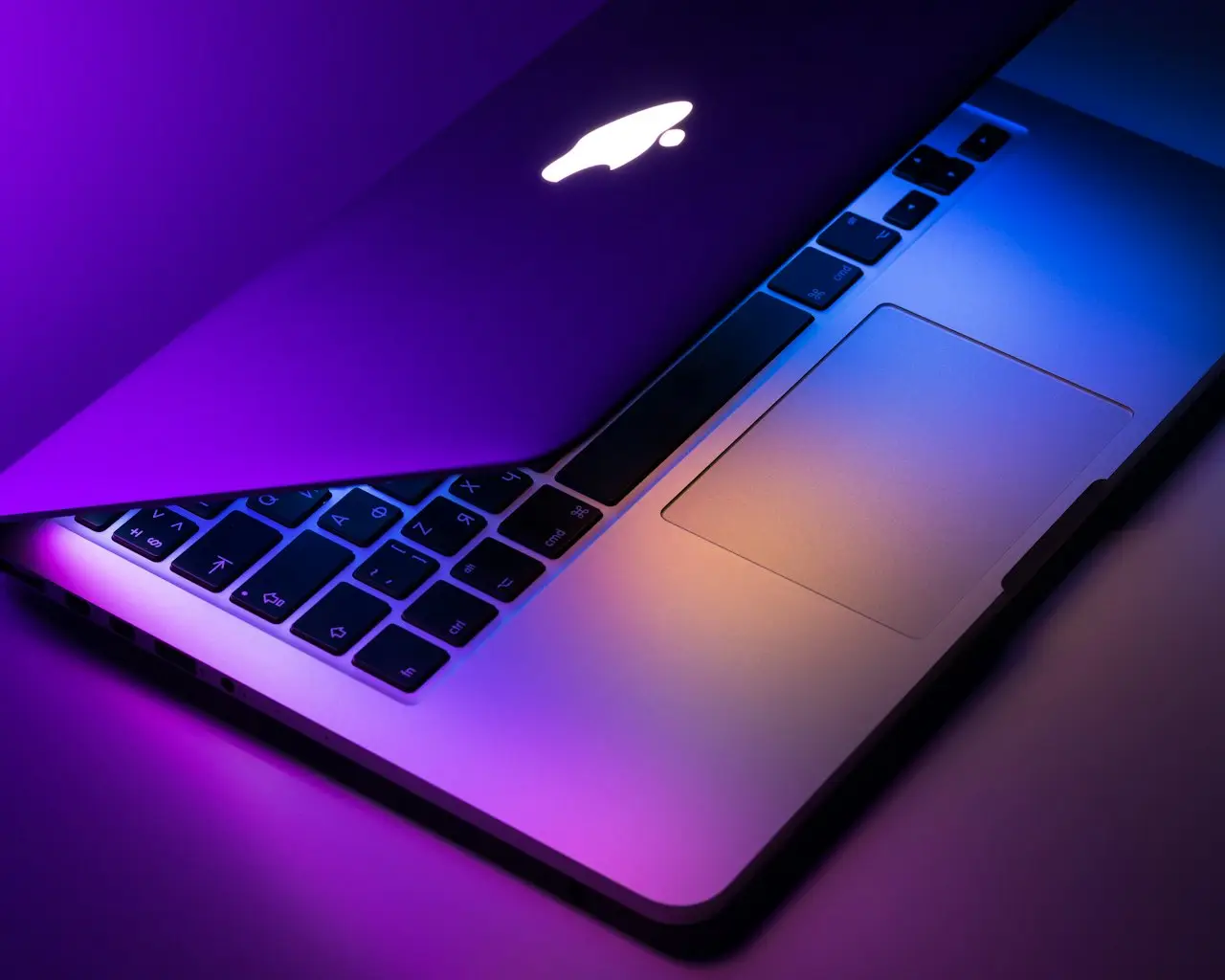
MacBook Not Charging?
MacBook won’t charge or stuck on low battery — USB-C PD vs MagSafe, port lint, Optimized Battery Charging, Apple silicon resets, wattage mistakes, and when the port or battery needs service.
MacBook not charging is a wattage and negotiation problem until a known-good charger proves otherwise. In the shop, people replace batteries for what was a 30W phone brick on a 16‑inch Pro — or Optimized Battery Charging holding at 80% overnight.
Related: liquid damage first steps · external display after Tahoe · MacBook Air M5 buyer guide · MacBook Wi‑Fi · Android slow charging (same PD logic).
Symptom map
| What you see | Likely cause | First move |
|---|---|---|
| No charging icon | Dead cable/brick, bad port, deep discharge | Known PD kit; try all ports |
| “Charging” but % stuck | Weak adapter or Optimized hold | Higher-watt brick; check Battery settings |
| Only one USB-C works | Lint or damaged port | Clean; then hardware |
| MagSafe connects, no charge | Upstream PD / cable | Another MagSafe + wall wart |
| Works on desk hub, fails on travel brick | Travel brick under-powered | Check adapter watts |
| After spill near hinge/ports | Corrosion | Stop; liquid guide |
1. Prove Power Delivery (not “a USB-C cable”)
Apple silicon and modern Intel Macs expect USB-C Power Delivery at a sensible wattage:
| Machine class | Rough charger expectation |
|---|---|
| 13–15” Air / thinner Pro | Often 30–70W class |
| 14–16” Pro under load | Higher PD adapters (don’t skim) |
Use:
- A wall charger that actually states adequate PD watts
- A cable known to carry high wattage (e‑marked where required)
- A wall outlet that works
Desk test tip: a magnetic VENTION USB-C hub with PD on Amazon plus a proper brick is a clean way to confirm negotiation — if the Mac still shows 0W there, stop blaming random travel dongles. Keep that brick in a 4.4” charger pouch on Amazon so the next hotel test is not a mystery 5W cube from the laptop sleeve.
Skip:
- USB‑A phone chargers with flimsy C adapters
- Dying power banks that sag under load
- Mystery “100W” cables that fail the second you open Final Cut
2. Try every port (and MagSafe if you have it)
- Left and right USB‑C (model dependent)
- MagSafe if equipped — confirm the LED behavior and System Settings → Battery
- Unplug hubs/docks and charge direct once
If only one physical USB‑C never charges across cables, that port is the patient.
3. Clean lint before you quote a port
Pocket fluff lifts the plug just enough to kill high-current pins.
- Shut down
- Bright light into the USB‑C cavity
- Scoop with plastic/wood — never a metal SIM tool
- Retest straight-in seating
Angle-only charging is a countdown to a torn port.
4. Software that looks like “broken charging”
Optimized Battery Charging
System Settings → Battery → Optimized Battery Charging can hold around 80% based on your routine. That is not a failed battery. Disable for one diagnostic night if you need a full top-up test.
macOS stuck power state
- Shut down fully (not just close the lid)
- Wait 30–60 seconds unplugged
- Boot on the known-good charger
Update macOS when the machine can stay awake long enough — charge firmware fixes ride along more often than people think.
Battery health context
Low Maximum Capacity explains short runtime, not necessarily “won’t take a charge.” If System Information / Coconut-class tools (shop) show 0W input on a known kit, you are in port/board territory, not “buy a 100% health battery and pray.”
5. MagSafe-specific notes
MagSafe is a detachable tip over PD. Failures still split into:
- Cable / magnet alignment
- Under-powered wall adapter
- Debris on the MagSafe connector
- USB‑C direct works → MagSafe cable path
- Nothing works → port/board/battery path
6. When it is hardware
Escalate after a known PD kit, clean ports, and a full shutdown cycle still fail:
- Loose USB‑C port in the chassis
- Liquid history near the I/O board
- Swollen battery pushing the trackpad/case
- Charge controller / board faults (shop diagnostics)
Techs: careful board access with an iFixit Pro Tech Toolkit on Amazon. Owners: backup first, then service — especially after liquid (first hour guide).
If repair quotes approach a new machine, compare with a sane config in our MacBook Air M5 13-inch guide.
Do / Don’t
Do
- Match charger wattage to the laptop
- Test direct to the Mac, not only through a dying dock
- Disable Optimized Charging for one controlled overnight test
Don’t
- Replace the battery on day one
- Jam metal into USB‑C
- Assume MagSafe “green light myths” from old Intel forum posts
Bottom line
Prove PD wattage → try every port → clean lint → understand Optimized holds → then port/battery service. A phone charger on a Pro is not a diagnostic — it is how false “dead battery” tickets start.
Frequently Asked Questions
Battery icon shows charging but percent never rises?
Often a weak brick/cable that only trickle-feeds, or Optimized Battery Charging holding around 80%. Test a known higher-wattage PD charger overnight and watch System Settings → Battery.
Only one USB-C port charges?
The other port may be full of lint or damaged. Clean carefully, try a second cable, then treat a single dead port as hardware.
MagSafe light is amber forever / wrong behavior?
Try another MagSafe cable and a wall adapter with enough watts for your model. MagSafe is convenient — it still needs adequate PD upstream.
Do Apple silicon Macs still need an SMC reset?
Not the old Intel SMC dance. Shut down fully, wait 30+ seconds, use a known-good charger, and update macOS. Hardware follows if watts never appear.
After liquid near the ports?
Stop charging while wet. Corrosion kills USB-C/MagSafe paths — see our liquid damage first-hour guide, then service.
As an Amazon Associate, I earn from qualifying purchases. Affiliate disclosure
Related fixes
MagSafe Not Charging After Liquid Near Port?
MacBook charging died after a spill near MagSafe/USB-C — port corrosion checks, cable isolation, SMC myths on Apple silicon, and when the power path on the board is damaged.
Read the fixmacOS Tahoe Not Detecting an External Monitor?
Mac not detecting an external display after macOS Tahoe — HDMI and USB-C handshake, docks, clamshell mode, HDR, refresh rate, and a dirty Thunderbolt port.
Read the fixSwitch Not Charging?
Nintendo Switch won’t charge or charges only in the dock — USB-C lint, weak chargers, dock passthrough failures, battery health signs, and port flex realities.
Read the fix