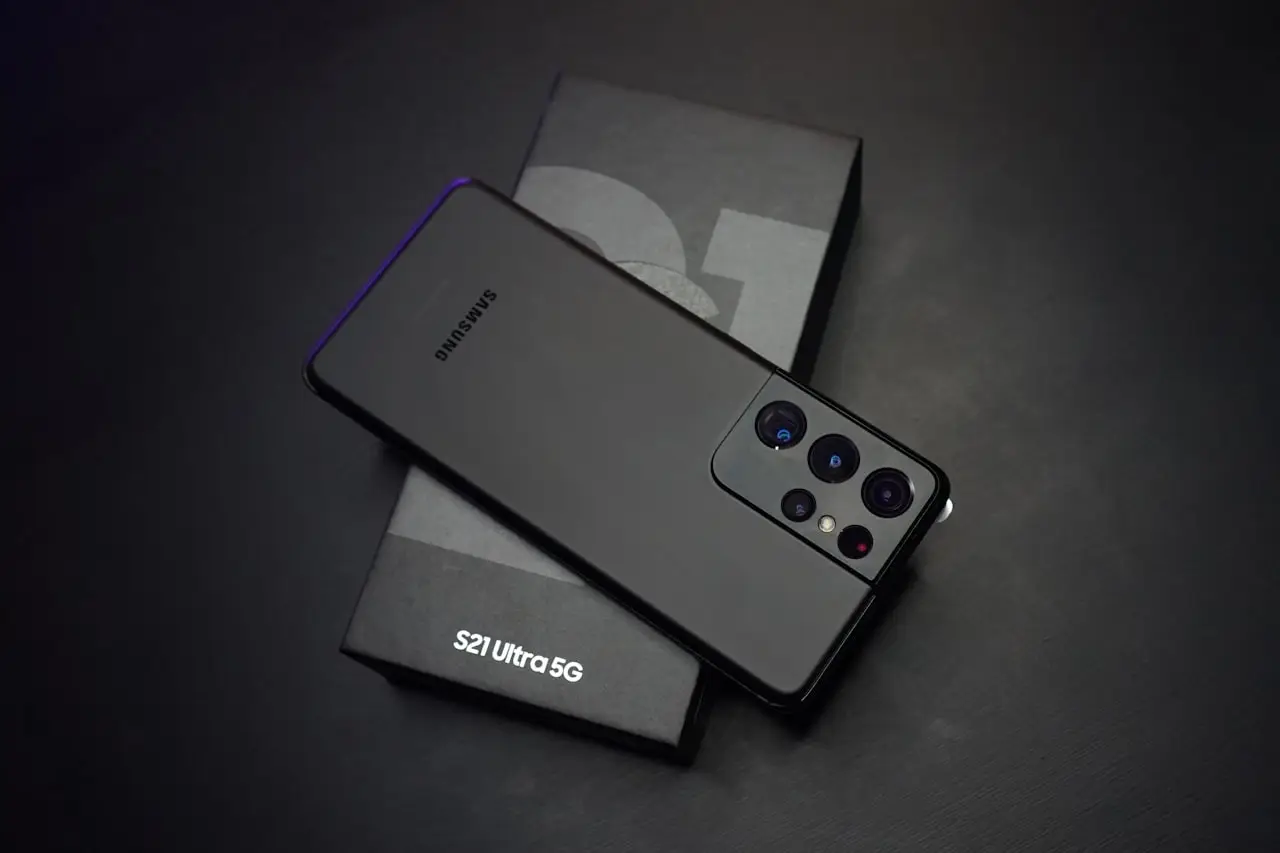
Samsung Fingerprint Broken After Screen Replacement?
Fix Galaxy under-display or side-mount fingerprint failures after a new screen — Samsung calibration menus, Good Lock myths, protector thickness, and ultrasonic sensor realities on recent Galaxies.
Samsung Galaxy fingerprint failures after a screen change feel identical to Pixel issues — different sensor tech, same user pain. Touch works, biometrics do not, and the shop says “just add your finger again.” Sometimes re‑enrollment is enough. Often the panel was never calibrated, or the OLED is the wrong stack.
Home steps that actually help
- Peel off the tempered glass; test bare.
- Settings → Security and privacy → Biometrics → Fingerprints → remove all → re‑add with dry fingers and multiple angles.
- Enroll a second finger as backup.
- Turn on options like fingerprint always on / show icon on AOD if you use them (wording varies by One UI).
- Clean the enrollment area; avoid cases that shift your thumb landing zone.
- Install Software update + Play system updates; reboot.
- Retry with lotion‑free hands in normal indoor light.
If bare glass still fails randomly after fresh templates, stop buying thicker glass “for better grip.”
Ultrasonic vs optical (why your cousin’s fix failed)
Older optical under‑display readers and newer ultrasonic sensors do not respond to the same “brighten screen and press harder” folklore. Ultrasonic units especially hate:
- Wrong OLED stack / cheap aftermarket panels
- Air gaps / poor adhesive
- Moisture‑protection films left under the panel
- Skipped factory / service calibration
- Dust in the sensor path after a messy teardown
Pixel owners hit a cousin of this problem — see Pixel 8 fingerprint after screen replacement. The lesson is the same: touch success ≠ biometric success.
What to demand from the shop
Ask in writing before final payment when you can:
- Panel brand / quality tier they installed
- Whether fingerprint calibration was completed after assembly
- Warranty covering biometric function, not only “display lights up”
- Whether they will swap the panel if UDFPS accuracy stays coin‑flip on bare glass
If they refuse calibration language entirely on a flagship ultrasonic model, that is useful information before you pay the balance.
Side-button fingerprint models
Some Galaxies put the reader in the power key. A careful screen repair should not kill it — unless they also swapped a damaged frame, power flex, or flooded the side key with adhesive. Re‑enrollment still helps; hardware replacement is a separate line item.
Factory reset — when it helps and when it wastes a day
A reset can clear corrupted biometric templates and weird Knox/biometric service glitches. It will not turn a incompatible OLED into an OEM panel. Back up first (before sending for repair, WhatsApp backup) if you go that route.
Do / Don’t
Do
- Retest bare glass before any second paid repair
- Update One UI before condemning hardware
- Require biometric warranty language on flagship screen jobs
Don’t
- Spam random
*#codes from decade‑old forum screenshots - Factory reset as step one
- Accept “Samsung software is like that” when it worked before the glue dried
Shop vs DIY
| Step | DIY | Shop |
|---|---|---|
| Protector off + re‑enroll | Yes | — |
| OS updates | Yes | — |
| Ultrasonic calibration | No (needs tools) | Yes |
| Panel swap for known‑good OLED | No | Yes |
Related failures to rule out
- Wet or oily fingers after repair feel like a dead sensor — clean both finger and glass.
- Work profile / multiple users can confuse which biometrics apply.
- Heavy screen protectors marketed for “privacy” often kill UDFPS.
- If the phone also struggles with Play Store or post‑update heat, stabilize software first (Android 16 problems) then retest fingerprint.
- On S25 Ultra specifically, use the dedicated checklist: Galaxy S25 Ultra fingerprint after screen.
- Pixel optical twin: Pixel 9 Pro fingerprint after screen.
Enrollment technique that improves hit rate
- Wash and dry hands.
- Enroll the same finger with edges and tip, not only the pad.
- Add the finger again as a second template if your One UI build allows multiple entries of similar angles.
- Avoid enrolling immediately after applying lotion or hand sanitizer.
- Retry unlock with the phone awake (not from deep AOD sleep) during testing.
Protector shopping after a good repair
Once calibration works on bare glass, add a protector marketed for ultrasonic / in‑display sensors. Avoid privacy filters and thick “military” glass. If accuracy collapses only after the protector, the protector is guilty — not Knox.
Knox and bank apps
Some banking apps are picky about biometrics after repair. If system unlock works but one bank app fails, remove the app’s biometric permission and re‑enable, or use PIN for that app. That is not proof the panel is bad.
Documentation for comebacks
Film a slow‑motion unlock attempt on bare glass showing repeated failures. Pair it with the work order promising fingerprint function. Visual evidence shortens the argument at the counter.
One UI biometric settings worth checking
Look for options related to stay on lock screen until unlock, show fingerprint icon, and strong biometric requirements for apps. After repair, re‑toggle these once. Then retest. If still failing on bare glass, stop settings surfing and demand calibration/parts.
Extra practical notes for stubborn cases
When Samsung Fingerprint Broken After Screen Replacement still misbehaves after the main checklist, slow down and change only one variable at a time. Techs lose hours when owners toggle ten settings, install three cleaners, and then cannot remember what actually helped.
One-variable testing
- Write the current symptom in one sentence.
- Apply a single change from the guide.
- Reboot if the change requires it.
- Retest the same sentence.
- Log pass/fail with time of day and network type (Wi‑Fi vs LTE vs 5G).
This notebook habit turns guesswork into a short diagnostic record you can hand to a shop.
Environmental factors people skip
Heat, low battery, full storage, and captive‑portal Wi‑Fi create ghost failures around Samsung, Galaxy, fingerprint, screen repair. Test again in a cool room, above 20% battery, with a few GB free, on known‑good power. If the fault vanishes under those conditions, you found constraints — not a mysterious hardware curse.
Notes before you spend money
- Ask whether the shop warranty covers the function you lost, not only that a part is installed.
- Keep receipts and screenshots.
- Prefer official OS updates and official app stores over random APKs and “fixer” profiles.
- Back up before invasive steps — every time.
Accessibility and human factors
If someone else uses the device (parent, child, colleague), confirm they did not enable Screen Time restrictions, guest accounts, or work profiles that change menus. Many “settings disappeared” tickets are permission layouts, not broken radios or sensors.
DIY note for home openers
Prefer opening the device yourself? To separate a screen or back glass at home with less crack risk, I recommend a temperature-controlled LCD screen separator / preheat opener on Amazon instead of a hair dryer or hot-air gun. Work slowly — and still back up first; DIY never replaces a clean restore path.
Bottom line
Re‑enroll after every Galaxy display change. If accuracy stays random on bare glass, the fix is calibration + correct OLED, not a third template of the same thumb — and not a mystery dialer code from 2019.
Frequently Asked Questions
Is Samsung fingerprint optical or ultrasonic?
It depends on the model. Many recent flagships use ultrasonic under-display sensors, which need proper panel compatibility and calibration after swaps.
Can *#0*# menus recalibrate fingerprint?
Service/secret codes vary by model and CSC. Do not spam random dialer codes from old forum posts — ask a tech with current Samsung tools.
Will a factory reset restore fingerprint?
It can clear bad templates. It will not make an incompatible aftermarket OLED behave like OEM.
Does tempered glass break ultrasonic sensors?
Thick or poorly cut glass often does. Always retest on bare display before condemning the repair.
Side-button fingerprint died after a screen job — related?
A pure display swap should not kill a power-key reader unless the frame/power flex was also disturbed. Re-enroll first, then inspect hardware.
As an Amazon Associate, I earn from qualifying purchases. Affiliate disclosure
Related fixes
S25 Ultra Fingerprint Broken After Screen?
Samsung Galaxy S25 Ultra ultrasonic fingerprint fails after display replacement — protector tests, re-enrollment, One UI calibration, and when the OLED stack is incompatible.
Read the fixSamsung Battery Drain on One UI
Galaxy S24, S25, and Fold battery drain on One UI — Adaptive battery, 5G, Always On Display, sleeping apps, and when the cell itself is worn out.
Read the fixPixel 9 Pro Fingerprint Dead After Screen Repair?
Google Pixel 9 / 9 Pro / 9 Pro XL fingerprint not working after screen replacement — re-enroll, protector myths, Tensor optical calibration, and when the OLED must be swapped again.
Read the fix