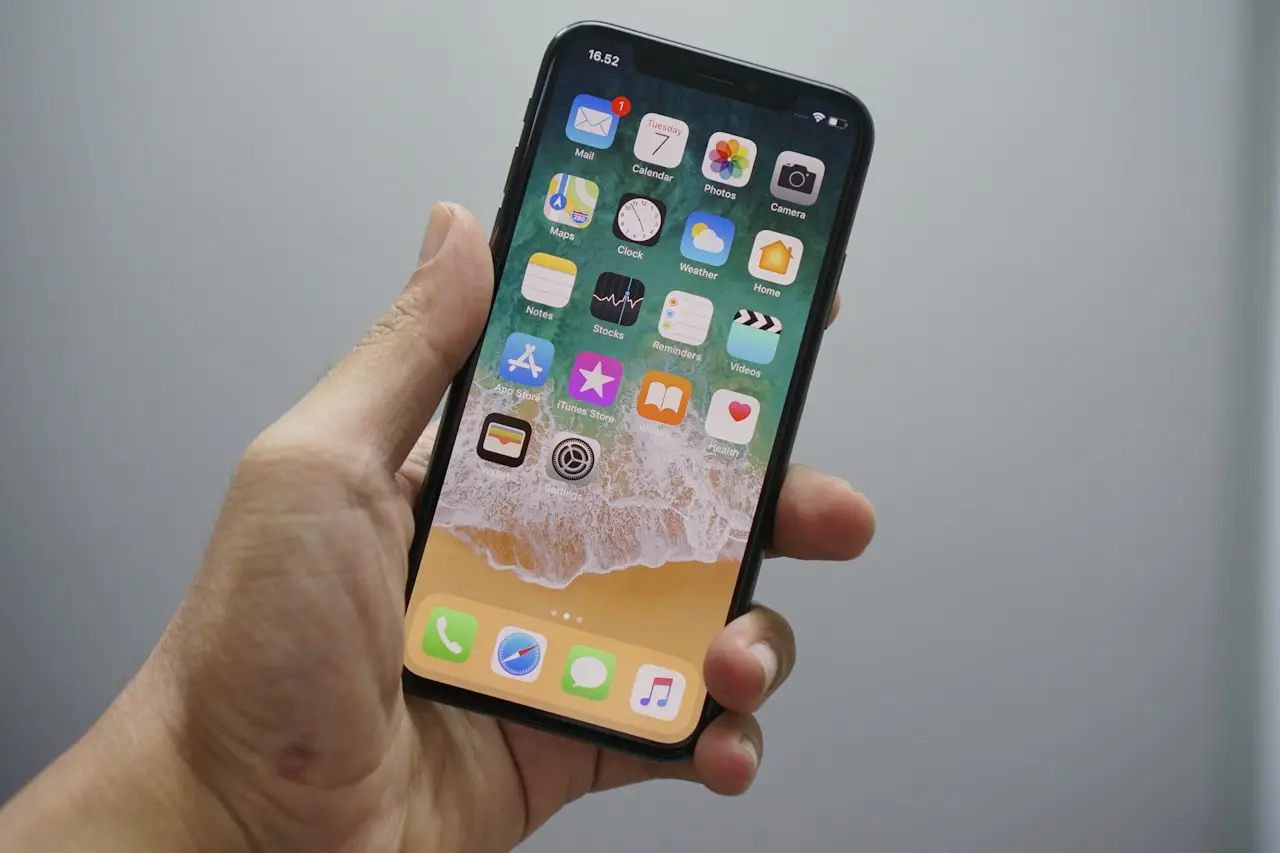
AirDrop Not Working? Fix iPhone and Mac Discovery
Get AirDrop working again between iPhone and Mac — WiFi/Bluetooth on, Everyone for 10 Minutes, Firewall blocks, and the personal hotspot conflict.
AirDrop failing is rarely “broken Apple.” In the shop, nine out of ten tickets are discovery settings, radio interference, or a Contacts Only mismatch — not a dead antenna. Work the checklist below before you reinstall macOS or erase an iPhone.
Related: Handoff · Universal Clipboard · AirPlay · Sidecar · Tahoe Bluetooth · HomePod · iOS 26.6 hub.
What AirDrop actually needs
AirDrop uses a short‑range blend of Bluetooth (discovery) and Wi‑Fi (the transfer). You do not need both devices on the same home SSID. You do need:
- Wi‑Fi On (connected to nothing is fine)
- Bluetooth On
- Receiving allowed on the target device
- Devices unlocked / awake and within a few meters
- No Personal Hotspot fighting for the same radios
If any one of those fails, the other Mac or iPhone simply never appears in the share sheet.
Checklist on iPhone
- Open Control Center → confirm Wi‑Fi On and Bluetooth On (dim icons that still say “On” are OK).
- Control Center → AirDrop → Contacts Only or Everyone for 10 Minutes.
- Keep the iPhone unlocked and screen on while the Mac sends.
- Settings → Personal Hotspot → Off.
- Disconnect VPN / private relay experiments briefly.
- Move within arm’s reach of the Mac — walls and metal desks still matter.
- If Screen Time is on a family device: Settings → Screen Time → Content & Privacy Restrictions → Allowed Apps and confirm AirDrop is allowed.
Checklist on Mac
- System Settings → General → AirDrop & Handoff (wording varies slightly by macOS version).
- Allow AirDrop from Contacts Only or Everyone.
- Wi‑Fi and Bluetooth On in the menu bar.
- Open Finder → AirDrop and leave that window visible while testing.
- If you customized the firewall: System Settings → Network → Firewall → Options and allow incoming for sharing services you use.
- Quit aggressive VPN clients and “Wi‑Fi booster” junk temporarily.
- Prefer the Mac’s built‑in Wi‑Fi/Bluetooth over a flaky USB dongle for discovery tests.
Contacts Only — the silent failure
Contacts Only is secure and also the #1 reason people think AirDrop is broken.
For Contacts Only to work, each Apple ID (email and/or phone number used for iMessage/FaceTime) should appear in the other person’s Contacts card. If your work Mac uses a different Apple ID than the phone number saved in your friend’s address book, you will stare at an empty share sheet forever.
Do: for a one‑off transfer to a stranger or a loaner laptop, switch to Everyone for 10 Minutes, send the file, then switch back.
Don’t: leave Receiving set to Everyone all day in a cafe.
Interference and environment
AirDrop hates:
- Personal Hotspot on either device
- Crowded 2.4 GHz conference / hotel Wi‑Fi (the transfer still uses Wi‑Fi radios)
- Cheap USB Bluetooth adapters on older Macs
- Thick metal phone cases that sit between devices on a desk
- Low Power Mode extremes plus a nearly dead battery (wake the phone)
Quick isolation test:
- Toggle Airplane Mode on the iPhone for 10 seconds, then off (Wi‑Fi/Bluetooth back on).
- Restart iPhone and Mac.
- Try sending a tiny photo first — prove discovery before blaming a 12 GB folder.
- Move both devices next to each other away from the microwave / mesh node cluster.
Still invisible after the basics?
- Confirm both devices are signed into iCloud (AirDrop does not require the same Apple ID, but a half‑broken iCloud session can confuse Contacts Only).
- Update iOS and macOS — mismatched major versions are occasionally flaky after big fall releases.
- On iPhone: Settings → General → Transfer or Reset iPhone → Reset → Reset Network Settings (keeps photos; clears Wi‑Fi passwords). Retry AirDrop.
- On Mac: forget the current Wi‑Fi network, rejoin, reboot, retry from Finder → AirDrop.
- Sign out/in of iCloud only as a last software resort — back up first.
Related fixes if radios are generally sick: iPhone Wi‑Fi not working and force restart a frozen phone.
Shop vs DIY
| Situation | DIY | Shop / Apple |
|---|---|---|
| Settings / Contacts Only / hotspot | Yes | Not needed |
| AirDrop dead and Wi‑Fi/Bluetooth flaky after drop | Limited | Antenna / logic board check |
| Only fails after liquid damage | Stop forcing transfers | Diagnostic |
Nobody needs a “logic board reball” for AirDrop that fails solely because Hotspot was on.
Do / Don’t
Do
- Use Everyone for 10 Minutes for one‑shot transfers
- Keep both devices unlocked and close
- Fall back to a cable for multi‑gig video dumps
Don’t
- Leave AirDrop on Everyone permanently
- Blame “Apple Cloud” when Hotspot is enabled
- Buy random “AirDrop fixer” Mac utilities
When a cable is the professional answer
AirDrop is excellent for a handful of photos and PDFs. It is not a truck. For a 12 GB 4K folder, wedding RAW sets, or a laptop that must leave in five minutes, use a USB‑C cable, AirPlay‑alternative workflow, or an SD/card reader. Fighting discovery on congested event Wi‑Fi wastes more time than plugging in once.
If discovery works for a 200 KB screenshot but large transfers stall at 90%, that is congestion or thermal throttling — retry closer together, or switch to wired. Your goal is a reliable handoff, not winning an argument with the share sheet.
Real-world scenarios techs see weekly
Office share that never appears
Someone tries to AirDrop a PDF to a loaner Mac signed into a different Apple ID. Contacts Only fails because the Mac’s Apple ID email is not on the sender’s contact card. Fix: Everyone for 10 Minutes, send, revert. Teach the team once and the ticket volume drops.
Family iPad + Screen Time
Kids’ devices often hide AirDrop under Screen Time. Parents think the radio is broken. Path: Screen Time → Content & Privacy Restrictions → Allowed Apps → AirDrop. Document this on the work order if you support family devices.
VPN always-on profiles
Corporate Always-On VPN can break peer discovery even when Safari works. Disconnect VPN for the transfer window. If policy forbids that, use a cable — do not fight MDM.
Transfer size reality check
| Transfer | AirDrop usually fine? | Better option |
|---|---|---|
| Photos / PDFs under ~1 GB | Yes | — |
| 4K holiday folder multi‑GB | Maybe | Cable / reader |
| RAW camera cards | Painful | Card reader |
| Conference Wi‑Fi room | Unreliable | Cable |
Firewall and macOS privacy details
On Mac, check System Settings → Privacy & Security for Bluetooth permissions if a third‑party share utility is involved. For stock AirDrop via Finder, focus on AirDrop & Handoff plus Firewall Options. After a major macOS update, re‑open Finder → AirDrop once so receiving permissions re‑register.
If Handoff / Continuity features are also dead (Clipboard, calls), fix Continuity broadly rather than AirDrop alone — same Apple ID on devices, two‑factor on, radios on.
When “it worked yesterday”
- Did either device enable Hotspot for a guest?
- Did iOS flip AirDrop back to Receiving Off / Contacts Only after a reboot?
- Did you move from home Wi‑Fi to a captive portal venue?
- Is Low Power Mode + nearly dead battery keeping the phone asleep locked?
Walk those four before you declare hardware failure.
Frequently Asked Questions
Why can’t I see the other Apple device?
Usually Bluetooth/WiFi off, AirDrop set to Contacts Only with no mutual contact card, devices too far apart, or Personal Hotspot/VPN interfering with discovery.
Does Screen Time block AirDrop?
Yes. Allowed Apps and communication limits under Content & Privacy Restrictions can hide or block AirDrop. Allow AirDrop temporarily while testing.
Can personal hotspot break AirDrop?
Yes. Turn off hotspot on both devices while testing. Hotspot and AirDrop both lean on the same radios and often collide.
Do both devices need the same Wi‑Fi network?
No. Wi‑Fi and Bluetooth must be on, but they do not need to join the same SSID. Peer-to-peer discovery handles the rest when settings allow it.
When should I stop troubleshooting and use a cable?
If you are moving multi‑GB video libraries, conference Wi‑Fi is congested, or you have already spent ten minutes on discovery — use a cable or card reader.
Related fixes
AirPods Pro Not Connecting to iPhone?
AirPods Pro won’t connect or keep switching devices — reset, Bluetooth toggle order, Forgotten Device cleanup, Firmware waits, mic/transparency glitches, and case charge checks.
Read the fixHow to Fix iPhone No Sound on Calls
Fix iPhone calls with no sound: Silent mode, earpiece obstruction, Bluetooth audio routes, Call Audio Routing, force restart, and when to seek repair.
Read the fixAirPods Crackling After iOS 26?
AirPods audio glitches after iOS 26 / 26.6 — crackle, skip, volume ducking, Adaptive Audio pumping, Automatic Switching, and when firmware vs a dead driver is next.
Read the fix