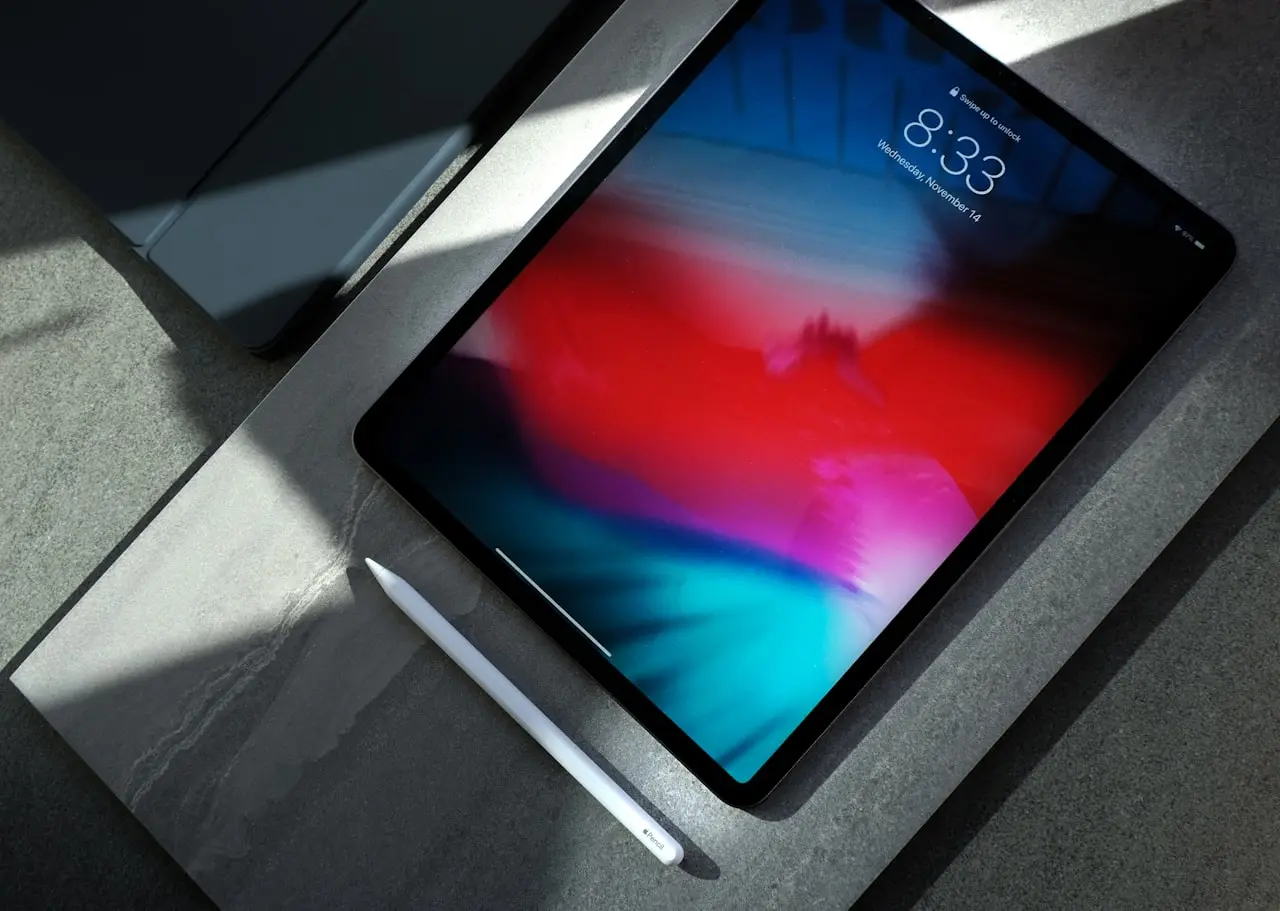
iPad Touch ID Not Working?
Fix iPad Touch ID failures: dirty Home button/top button sensor, iPadOS glitches, wet/cold hands, Screen Time locks, and when a post-repair sensor needs service.
iPad Touch ID not working is usually contamination, a hung biometric process, or enrollment quality — not an instant logic board replacement. Work clean → restart → re-enroll → policy/case checks before you quote parts. Know up front that some post-repair failures are permanent pairing issues.
If the whole tablet is frozen or black, recover that first (iPad frozen black screen, force restart). Passkey and password manager flows still need a working passcode fallback (passkeys not working).
Symptom guide
| Symptom | Likely cause | First move |
|---|---|---|
| Occasional fail, works after wipe | Oil / lotion / sweat | Clean sensor + dry hands |
| Never vibrates / never reads | Hung biometry or dead sensor | Force restart; then hardware |
| Fails only with case on | Case pressing top button sensor | Refit or remove case |
| Error after repair | Pairing / cable / wrong part | Authorized assessment |
| Asks for passcode repeatedly | Lock state / too many fails | Unlock with passcode; wait |
| Settings toggles greyed out | MDM / Screen Time restrictions | Check profiles and Screen Time |
iPhone Face ID drama after screen work is a cousin problem (iPhone 16 Face ID after repair); Touch ID has its own pairing rules — do not assume phone advice maps 1:1.
1. Clean and conditions
- Power off if you will wipe aggressively
- Microfiber only — no acetone, no toothpaste “tricks”
- Clean the Home button ring or top-button sensor area
- Dry hands; avoid testing right after hand cream
- For Home button models, remove thick tempered-glass kits that bridge the button poorly
Cold weather and wet kitchen hands produce false “hardware dead” tickets every winter.
2. Force restart before re-enrollment
Use the correct button sequence for your iPad generation (Home + top, or volume + top on Home-button-less units). After reboot:
- Unlock with passcode
- Retry Touch ID immediately
- If still dead, continue to enrollment
A frozen biometric daemon looks identical to a corpse sensor until you restart.
3. Delete and re-add fingerprints
Settings → Touch ID & Passcode (wording may show Face ID on some units — use the biometrics page your iPad offers):
- Confirm you know the passcode
- Delete existing fingerprints
- Add Fingerprint slowly with consistent angles
- Add a second enrollment of the same finger for better coverage
- Test Apple Pay / App Store prompt if you use them
If the iPad never progresses past the first enrollment screen, that is a stronger hardware signal.
4. Cases, Screen Time, and attention to settings
- Remove folio cases that laterally squeeze top-button sensors
- Screen Time → Passcode / content restrictions can interfere with account changes — not usually raw Touch ID, but check if Settings options are locked
- Ensure you are not in a prolonged passcode-required window after too many failures — wait and unlock
Attention-aware features are Face ID territory; for Touch ID, physical interference dominates.
5. Software update and deeper iPadOS repair
Update iPadOS on Wi‑Fi while stable. If Touch ID died after a bad update cycle, also glance at related Apple Intelligence / system feature glitches on other devices for pattern recognition (Apple Intelligence not working) — but do not chase AI toggles for a Home button.
As a controlled nuclear option after backup: erase iPad and restore. If Touch ID fails in Setup Assistant before restoring a backup, stop — that is hardware.
6. Hardware and repair realities
Escalate when:
- Sensor never responds after clean + restart + erase test
- Button feels mushy, stuck, or sunken
- Failure began immediately after display/battery service
- Liquid reached the button cavity
Read before sending a phone for repair habits for backups and accounts — iPads carry the same iCloud/Find My risks. Fingerprint modules after third-party screens on phones are a known minefield (Pixel 8 fingerprint after screen, Samsung fingerprint after screen); iPad Touch ID pairing can be equally unforgiving.
MacBook Touch ID is a different Secure Enclave package (MacBook Touch ID not working) — useful only as “biometrics need clean enrollment + correct pairing,” not as a parts cross-reference.
Do / Don’t
| Do | Don’t |
|---|---|
| Clean oil off the sensor first | Soak the button in alcohol gels |
| Force restart a hung biometric stack | Assume every fail needs a logic board |
| Re-enroll slowly with a passcode ready | Sand the coating “for better grip” |
| Remove interfering cases | Ignore post-repair pairing limits |
| Backup before erase or service | Send an iPad still signed into Find My without a plan |
Related FixingHacks guides
- MacBook Touch ID not working
- iPhone Face ID after repair
- Passkeys not working
- Pixel 8 fingerprint after screen
- iPad frozen black screen
- iPad Pro renewed buyer guide
- Before sending a phone for repair
Enrollment quality tips that actually help
When re-adding a finger:
- Cover different angles of the button/sensor edge
- Avoid swiping quickly; lift and press
- Enroll thumbs you actually use in portrait and landscape
- Add a second print for the same thumb if you unlock in different grips
For top-button Touch ID, reach with a natural sleep-grip press. Cases with floppy side walls that bump the button during enrollment create garbage templates.
Apple Pay and App Store as functional tests
Unlocking the iPad is not the only biometric path. After “fixing,” authenticate in the App Store and (if configured) Apple Pay. Some units appear to unlock via cached grace periods while Secure Enclave prompts still fail — those prompt tests catch incomplete repairs.
Documentation before service
Note:
- Exact iPad model (Settings → General → About)
- Whether Touch ID ever worked on this unit
- Date of any screen/battery service
- Whether enrollment UI responds at all
Shops use that to decide cable reseat vs “biometrics unavailable with non-genuine / unpaired parts.” Bring the passcode and Apple ID readiness for erase/restore testing under their supervision.
Bottom line
Restore iPad Touch ID with clean sensor → force restart → fresh enrollment → case/policy checks. Update or erase only after those basics. When enrollment never starts — especially after a repair — treat it as a pairing/hardware job, not another settings toggle. That keeps biometric tickets grounded. If the sensor is dead and you wanted a Face ID Pro anyway, start with the renewed 12.9-inch iPad Pro.
Frequently Asked Questions
Why does Touch ID say ‘Failed’ after I just registered my finger?
Oil films, wet skin, screen protectors covering button-style sensors, or a partial enrollment. Clean the sensor, dry hands, and add the same finger as a second print.
Is Touch ID different on iPad Air / mini with top-button sensors?
Yes. Top-button Touch ID fails more from case interference and moisture than classic Home button wear — but software triage is the same.
Will updating iPadOS fix Touch ID?
Sometimes, when a biometric daemon bugs out. Update on Wi-Fi after you have a passcode fallback working.
Can a frozen iPad break Touch ID until restart?
Yes. A hung SpringBoard/biometry stack often clears with a force restart.
After a screen repair, Touch ID never returns — why?
On many iPads, Touch ID is bound to the original Secure Enclave pairing. Incorrect parts or cables can permanently disable biometrics.
As an Amazon Associate, I earn from qualifying purchases. Affiliate disclosure
Related fixes
iPad Pro Renewed (2026) Buyer Guide
Renewed iPad Pro 12.9-inch 2022 vs 11-inch 2020 in 2026 — Sidecar, Touch ID vs Face ID, Square Stand POS reality, and when a frozen iPad needs recovery not a new tablet.
Read the fixiPad Frozen or Black Screen?
Unfreeze an iPad with a black screen or stuck UI using force restart, charging checks, recovery mode, and when to seek hardware service.
Read the fixiPadOS 26.6 Problems After Update?
Fix iPadOS 26.6 headaches in August 2026 — extra Spotlight indexing, slow Safari, broken Shortcuts automations, Stage Manager glitches, and when to install iPadOS 26.6.1.
Read the fix