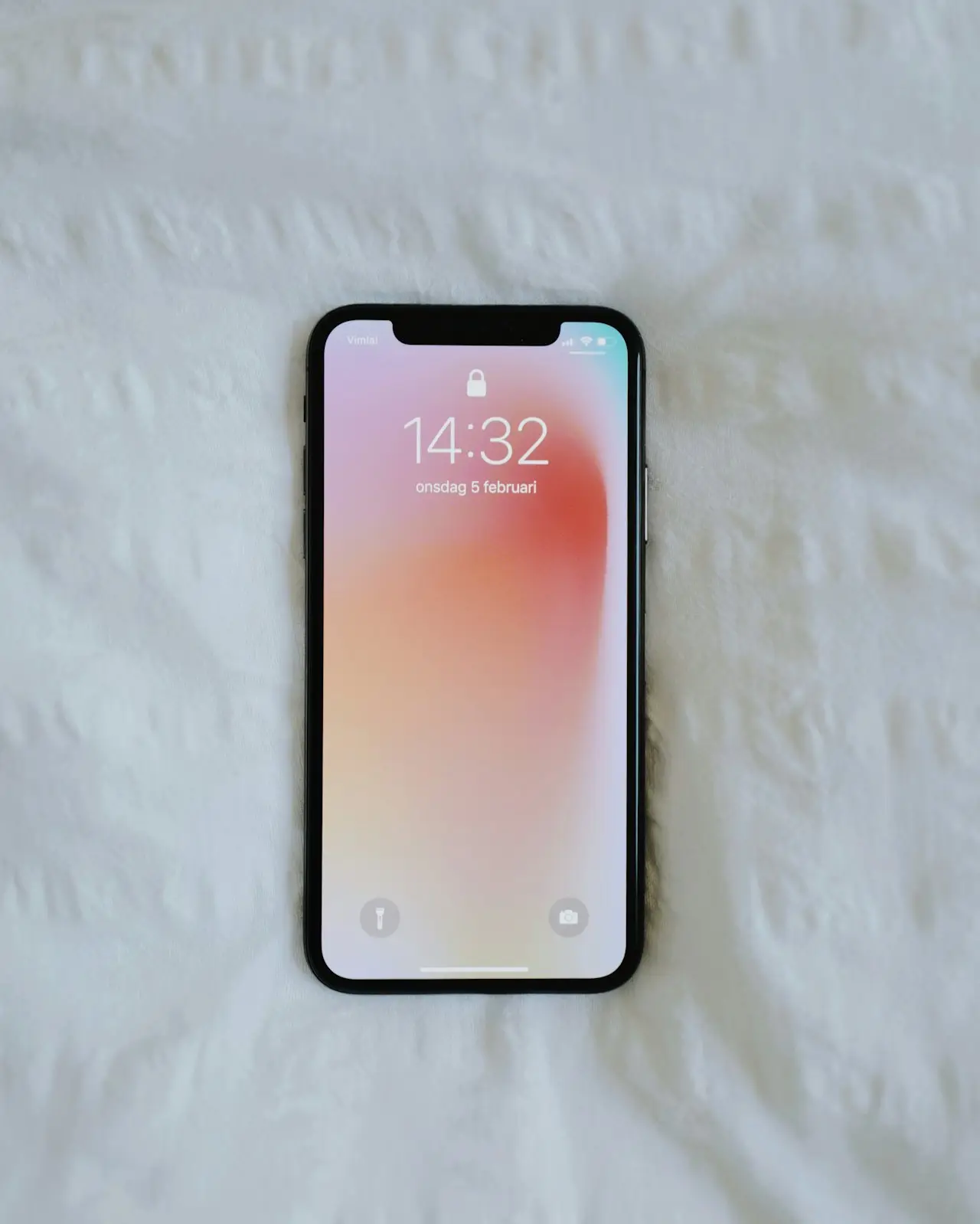
iPhone Not Charging?
Fix an iPhone that will not charge: clean the Lightning/USB-C port, rule out cable/brick faults, try force restart, and know when it is a battery hardware issue.
When your iPhone is not charging, start with the boring checks — cable, port lint, and adapter — before assuming the battery is dead. Bench techs replace far more cables than charge ICs on first visits.
Related: MacBook not charging · Android slow charging · iOS 26 battery drain · iOS 26.6 problems · flashlight.
1. Prove the accessories work
Test this matrix:
- Same cable + different wall adapter
- Different cable + same adapter
- Charge from a computer USB port
- For MagSafe/wireless models: try a known‑good wireless pad
If anything else charges fine on that brick/cable, the iPhone side is the issue. If nothing charges, replace the cable/adapter first. Prefer certified USB‑C / Lightning kits over bargain bin mystery wires — the Quntis 20W MFi 2-pack with 6ft C-to-Lightning cable on Amazon is the Lightning-shaped proof. USB-C iPhones (15 and later) still want a PD brick; a desk VENTION USB-C hub is optional for monitor + charge.
2. Clean the charging port (carefully)
- Power off the iPhone
- Use a bright light — look for lint packed at the bottom of the port
- Gently scoop with a wooden toothpick or soft plastic tool
- Blow dry air if available (avoid high‑pressure cans that spray liquid)
- Stop if you see bent pins — that is service territory
Do not use metal needles, screwdrivers, or “port cleaning kits” with hard tips.
3. Force restart and retry
A stuck power process can show a battery icon forever without charging. Force restart using your model’s sequence (force restart guide), then connect power again and leave it 15–30 minutes — especially if the phone hit 0%.
4. Respect liquid detection
If you see a moisture alert:
- Unplug immediately
- Leave the phone in a dry room for several hours
- Do not rice‑pack aggressively (dust risk)
- Retry with a certified cable once the alert clears
- If liquid was soda/beer, expect residue issues — shop cleaning beats kitchen experiments
5. Software checks
- Update iOS when you can power on
- Check Settings → Battery → Battery Health & Charging
- Turn off Optimized Battery Charging temporarily if it appears stuck at 80% (it may just be waiting for your schedule)
- Reset Settings → General → Transfer or Reset iPhone → Reset → Reset All Settings (keeps data; clears stubborn charge glitches)
- After major updates, heat and odd charge behavior can linger — see iOS 26 battery drain and iPhone overheating
6. Know the hardware signs
Book service when:
- The phone only charges if you twist the cable
- Battery Health is significantly degraded and runtime collapsed
- The device is swollen (stop using it — safety issue)
- Wireless works but wired never does after cleaning (port damage)
- You see Important Battery Information after a recent cell swap (battery health unknown)
Shop vs DIY
| Symptom | DIY | Shop |
|---|---|---|
| Bad cable / lint | Yes | — |
| Moisture alert | Dry time | Deep clean if sugary liquid |
| Bent pins / twist to charge | Stop | Port / flex repair |
| Swollen battery | Stop using | Immediate service |
Do / Don’t
Do
- Swap cables before booking a battery
- Clean with plastic/wood only
- Supervise first charges on a replacement cell
Don’t
- Stab the port with metal
- Charge under pillows
- Ignore swelling
Quick prevention tips
- Avoid yanking the cable at an angle
- Shake sand out before plugging in at the beach
- Prefer certified chargers for overnight top‑ups
- Replace frayed cables early
- Keep pockets free of lint bombs (tissue + sand)
Wireless vs wired isolation matrix
| Wired | Wireless | Likely focus |
|---|---|---|
| No | No | Battery / PMIC / deep discharge |
| No | Yes | Port / wired flex |
| Yes | No | Coil / MagSafe accessory |
| Intermittent | Yes | Lint / damaged port |
Use the matrix before accepting a battery quote.
Car chargers and junk cables
Car USB ports can be noisy or underpowered. A phone that “won’t charge in the car” but charges on a wall brick is an accessory problem. Stop using frayed cables that expose wires — fire risk, not just slow charge.
Optimized Battery Charging confusion
If the phone sits at 80% overnight with Optimized Charging on, that can be normal. Check the lock screen for “Charging on Hold” style messaging. Disable Optimized Charging for one night as a test, then re‑enable. Do not book a battery replacement for a hold feature.
Lightning vs USB-C generation notes
Know your port. Using worn Lightning tips on older phones packs lint differently than USB‑C. USB‑C debris often sits at the back of the cavity — scoop carefully, do not pry sidewalls.
Data recovery angle while charge is dying
If the phone only stays awake on power and battery percentage collapses instantly off cable, back up immediately before the window closes. A “not charging” ticket can become a data‑recovery ticket overnight.
Extra practical notes for stubborn cases
When iPhone Not Charging still misbehaves after the main checklist, slow down and change only one variable at a time. Techs lose hours when owners toggle ten settings, install three cleaners, and then cannot remember what actually helped.
One-variable testing
- Write the current symptom in one sentence.
- Apply a single change from the guide.
- Reboot if the change requires it.
- Retest the same sentence.
- Log pass/fail with time of day and network type (Wi‑Fi vs LTE vs 5G).
This notebook habit turns guesswork into a short diagnostic record you can hand to a shop.
Environmental factors people skip
Heat, low battery, full storage, and captive‑portal Wi‑Fi create ghost failures around iPhone charging, Lightning, USB-C, battery. Test again in a cool room, above 20% battery, with a few GB free, on known‑good power. If the fault vanishes under those conditions, you found constraints — not a mysterious hardware curse.
Notes before you spend money
- Ask whether the shop warranty covers the function you lost, not only that a part is installed.
- Keep receipts and screenshots.
- Prefer official OS updates and official app stores over random APKs and “fixer” profiles.
- Back up before invasive steps — every time.
Accessibility and human factors
If someone else uses the device (parent, child, colleague), confirm they did not enable Screen Time restrictions, guest accounts, or work profiles that change menus. Many “settings disappeared” tickets are permission layouts, not broken radios or sensors.
When upgrading makes sense: if port or battery hardware quotes keep climbing on an aging handset, a renewed large-screen USB-C phone can reset the problem — see renewed iPhone 15 Plus worth buying in 2026.
Bottom line
Most “won’t charge” tickets end with a dirty port or a tired cable. Work accessories and cleaning first, then software, then battery/port hardware — in that order.
Frequently Asked Questions
Why does my iPhone say Accessory may not be supported?
The cable or accessory is damaged, wet, or not standards-compliant. Try an Apple or certified cable and dry the port fully.
Can lint in the port stop charging?
Yes. Pocket lint is extremely common. Clean gently with a wooden/plastic pick — never a metal pin.
When should I replace the battery?
If Battery Health is very low, the phone dies at 20–40%, or it only charges on a precise cable angle after software checks pass.
Is wireless charging a good test?
Yes. If wireless works and wired never does after cleaning, suspect the port or charge flex.
Should I use rice for moisture alerts?
No. Unplug, dry in open air, and wait for the alert to clear. Rice dust makes ports worse.
As an Amazon Associate, I earn from qualifying purchases. Affiliate disclosure
Related fixes
iPhone Charge Port Cleaning
Clean an iPhone Lightning or USB-C charge port safely — remove pocket lint, stop angle-only charging, avoid metal picks, and know when the port flex needs replacement.
Read the fixiPhone 15 Plus Renewed in 2026
Should you buy an unlocked renewed iPhone 15 Plus (128GB) in 2026? Battery checks, USB-C upsides, Apple Intelligence reality, and when to skip for a newer model.
Read the fixiPhone Camera Black Screen: Unavailable Lens Fixes
iPhone Camera app black viewfinder or ‘Camera unavailable’ — force quit, clean reboot, Lens Correction, third-party apps, and when a module or flex is dead after a drop.
Read the fix