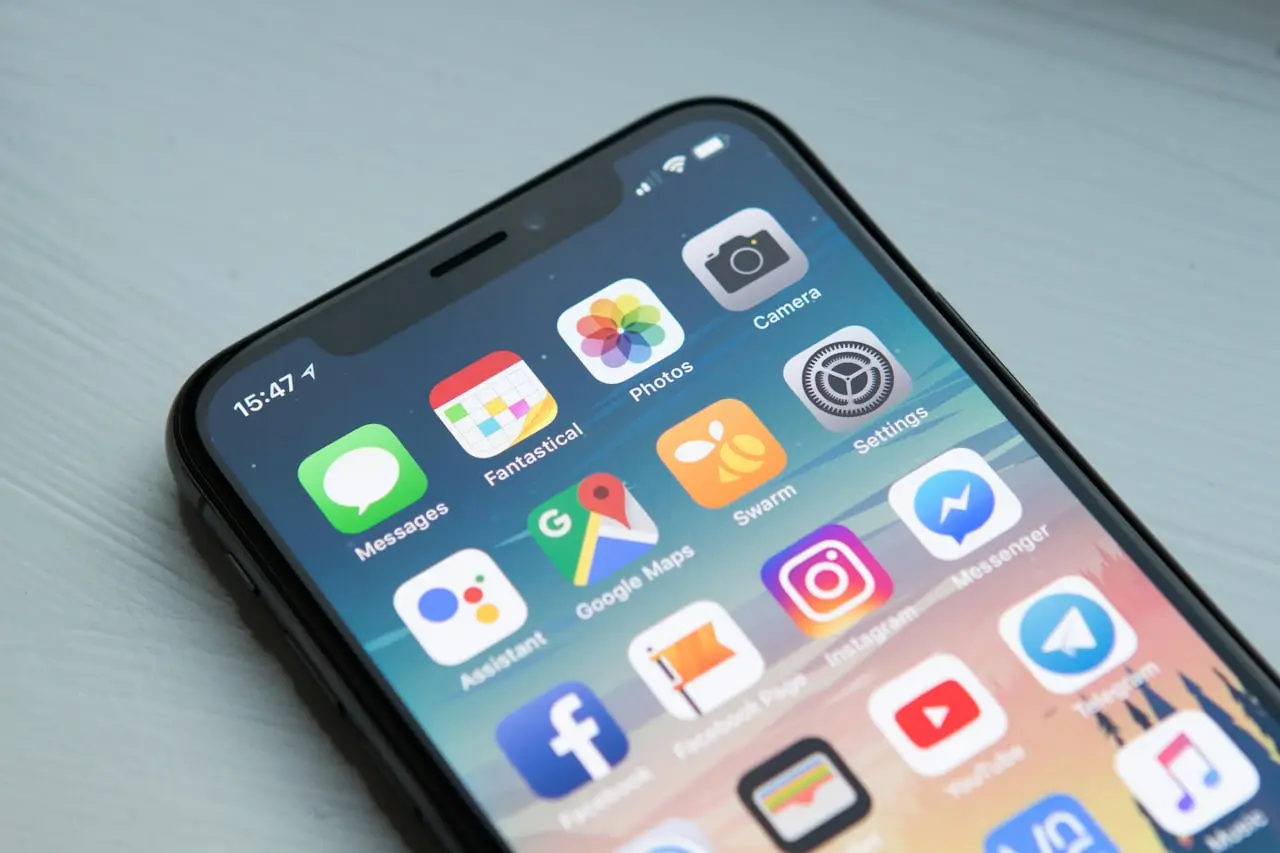
iPhone Battery Drain After iOS 26?
Stop iOS 26 battery drain from Liquid Glass, Apple Intelligence indexing, Background App Refresh, and Adaptive Power settings on iPhone 15–17.
Updated to iOS 26 and your iPhone battery is draining fast? In 2026 this is one of the most common US/UK search complaints — and most cases improve without a DFU restore.
Related: iOS 26.6 problems · overheating after iOS 26 · Safari slow · iCloud Photos paused · notifications · iPhone 17 overheating.
1. Give the first 48–72 hours a chance
After a major update, iPhone runs heavy background work:
- Spotlight reindex
- Photos library analysis
- Apple Intelligence on‑device model downloads
- Mass App Store updates
Check Settings → Battery for an Ongoing iOS Update / Battery Insights card. If it is there, plug in overnight and wait. Panic‑wiping on day one deletes the wrong problem. Warmth during this window is common — iPhone 17 overheating.
2. Find the rogue app (after day three)
Settings → Battery → App Activity
Sort by usage. Suspect any app with huge Background time and tiny On Screen time. Offenders in 2026 still include social apps, free VPN clients, and poorly updated weather widgets.
Fix: Settings → General → Background App Refresh → turn off per app (keep Messages/Maps as needed).
3. Re-check Location permissions (iOS 26 often resets them)
Settings → Privacy & Security → Location Services
Set rarely used apps to While Using or Never. “Always” for shopping/social apps is silent battery death.
4. Soften Liquid Glass on older iPhones
iOS 26’s translucent Liquid Glass UI looks great and costs GPU time on iPhone 13/14‑class devices.
Settings → Accessibility → Display & Text Size / Motion
- Enable Reduce Transparency
- Enable Reduce Motion if animations feel heavy
5. Turn on Adaptive Power (supported models)
On eligible iPhone 15 Pro / 16 / 17‑class devices:
Settings → Battery → Adaptive Power (wording may vary slightly)
Let iOS dial performance back on extreme usage days instead of falling off a cliff at 3pm.
6. Display and always-on trims
- Disable Always On Display if you do not need it
- Allow auto brightness to work; stop fighting it constantly
- Shorten Auto‑Lock to 30 seconds
- Remove thick wallet MagSafe cases while indexing finishes
7. Apple Intelligence trade-off
If Intelligence features are downloading forever and the phone stays warm:
- Pause nonessential Intelligence toggles temporarily
- Stay on Wi‑Fi + power until models finish
- Free storage so downloads can complete (free iPhone storage)
- Re‑enable features afterward — see Apple Intelligence not working
8. Radios: 5G and weak signal
Patchy 5G burns battery on any iOS. Force LTE for a week in weak areas (disable 5G). Also fix Wi‑Fi flapping that kicks you to cellular constantly (iPhone Wi‑Fi).
9. When hardware is the real issue
If Battery Health is under ~80%, or the phone dies at 20%, settings will not restore old stamina. Check Settings → Battery → Battery Health, then consider service. Aftermarket cell quirks: battery health unknown. Charging faults: iPhone not charging.
Quick 10-minute recovery checklist
- Wait out indexing if insights say so
- Kill background hogs
- Location → While Using
- Reduce Transparency
- Adaptive Power on
- Try LTE for a day
- Force restart once (force restart)
Do / Don’t
Do
- Give 72 hours after major updates
- Audit Battery by background time
- Charge with certified cables overnight during indexing
Don’t
- DFU on day one for normal indexing drain
- Install random “battery saver” apps
- Judge a new flagship while MagSafe gaming in sun
Shop vs DIY
Settings and radio trims are DIY. Swollen packs, shutdowns at high percentage, and Health under ~80% with terrible runtime are service. Avoid shops that want to replace a battery before you finish the 72‑hour settle window on a brand‑new update.
Widgets and Live Activities
iOS 26‑era widgets and Live Activities can wake radios. Remove redundant weather/sports widgets for a week as a test. Disable unnecessary Live Activities from lock screen long‑press menus.
Mail and Exchange push
Push email on multiple big accounts is a classic drain. Try Fetch schedules for secondary accounts. If Battery shows Mail dominating background, that is your lead — not Liquid Glass.
Compare charge cycles honestly
Judge after the indexing window using similar days (same commute, same 5G/LTE setting). Comparing update night to a quiet Sunday lies to you.
Low Power Mode vs Adaptive Power
Low Power Mode is a blunt temporary tool. Adaptive Power (where available) is smarter day‑to‑day. Use Low Power Mode on travel days; use Adaptive Power + background trims as the default strategy after iOS 26 settle time.
Extra practical notes for stubborn cases
When iPhone Battery Draining Fast After iOS 26 still misbehaves after the main checklist, slow down and change only one variable at a time. Techs lose hours when owners toggle ten settings, install three cleaners, and then cannot remember what actually helped.
One-variable testing
- Write the current symptom in one sentence.
- Apply a single change from the guide.
- Reboot if the change requires it.
- Retest the same sentence.
- Log pass/fail with time of day and network type (Wi‑Fi vs LTE vs 5G).
This notebook habit turns guesswork into a short diagnostic record you can hand to a shop.
Environmental factors people skip
Heat, low battery, full storage, and captive‑portal Wi‑Fi create ghost failures around iOS 26, battery drain, Liquid Glass, Apple Intelligence. Test again in a cool room, above 20% battery, with a few GB free, on known‑good power. If the fault vanishes under those conditions, you found constraints — not a mysterious hardware curse.
Notes before you spend money
- Ask whether the shop warranty covers the function you lost, not only that a part is installed.
- Keep receipts and screenshots.
- Prefer official OS updates and official app stores over random APKs and “fixer” profiles.
- Back up before invasive steps — every time.
Accessibility and human factors
If someone else uses the device (parent, child, colleague), confirm they did not enable Screen Time restrictions, guest accounts, or work profiles that change menus. Many “settings disappeared” tickets are permission layouts, not broken radios or sensors.
When upgrading makes sense: if Battery Health is weak and settings cannot restore usable runtime, a renewed large-screen USB-C handset can beat endless charger experiments — see renewed iPhone 15 Plus worth buying in 2026.
Related FixingHacks guides
- Free iPhone storage
- iCloud Photos not syncing
- Apple Intelligence not working
- iPhone 17 overheating fix
- Disable 5G on iPhone and Android
- iPhone not charging
- Renewed iPhone 15 Plus worth buying in 2026?
Bottom line
Most iOS 26 battery threads quiet down within a week. Use the settings above if yours does not — and only then talk hardware.
Frequently Asked Questions
Is battery drain normal right after updating to iOS 26?
Yes. Spotlight reindexing, Photos analysis, and Apple Intelligence model setup commonly spike usage for 48–72 hours. Wait before factory-resetting.
What is Liquid Glass and does it use more power?
Liquid Glass is iOS 26’s translucent visual style. On older iPhones it can cost GPU/battery — Reduce Transparency and Reduce Motion help.
Which iPhones get Adaptive Power?
Apple’s Adaptive Power features target newer Pro and recent flagship models (15 Pro and many 16/17-class devices). Older iPhones may not show the toggle.
Can 5G make iOS 26 drain worse?
Yes in weak coverage. Try LTE for a commute week. See our disable 5G guide.
When is the battery hardware the real issue?
If Battery Health is weak or the phone dies at 20–40% after settle time, settings will not restore old stamina.
Related fixes
iOS 26.6 Problems After Update?
Hub for iOS 26.6 after the August 2026 update — Spotlight indexing, Safari, camera/flashlight, Shortcuts, 26.6.1, plus links to battery, apps, and Continuity guides.
Read the fixiPhone Overheating on iOS 26.6? Heat After the Update
iOS 26.6 overheating and heating issues — indexing, Apple Intelligence, 5G, a thick case, and when a weak battery is the real cause.
Read the fixiPhone 17 Overheating or Heating Up?
iPhone 17 and 17 Pro heating issues after iOS 26 — normal warmth versus a problem, MagSafe cases, 5G, and what to change first.
Read the fix