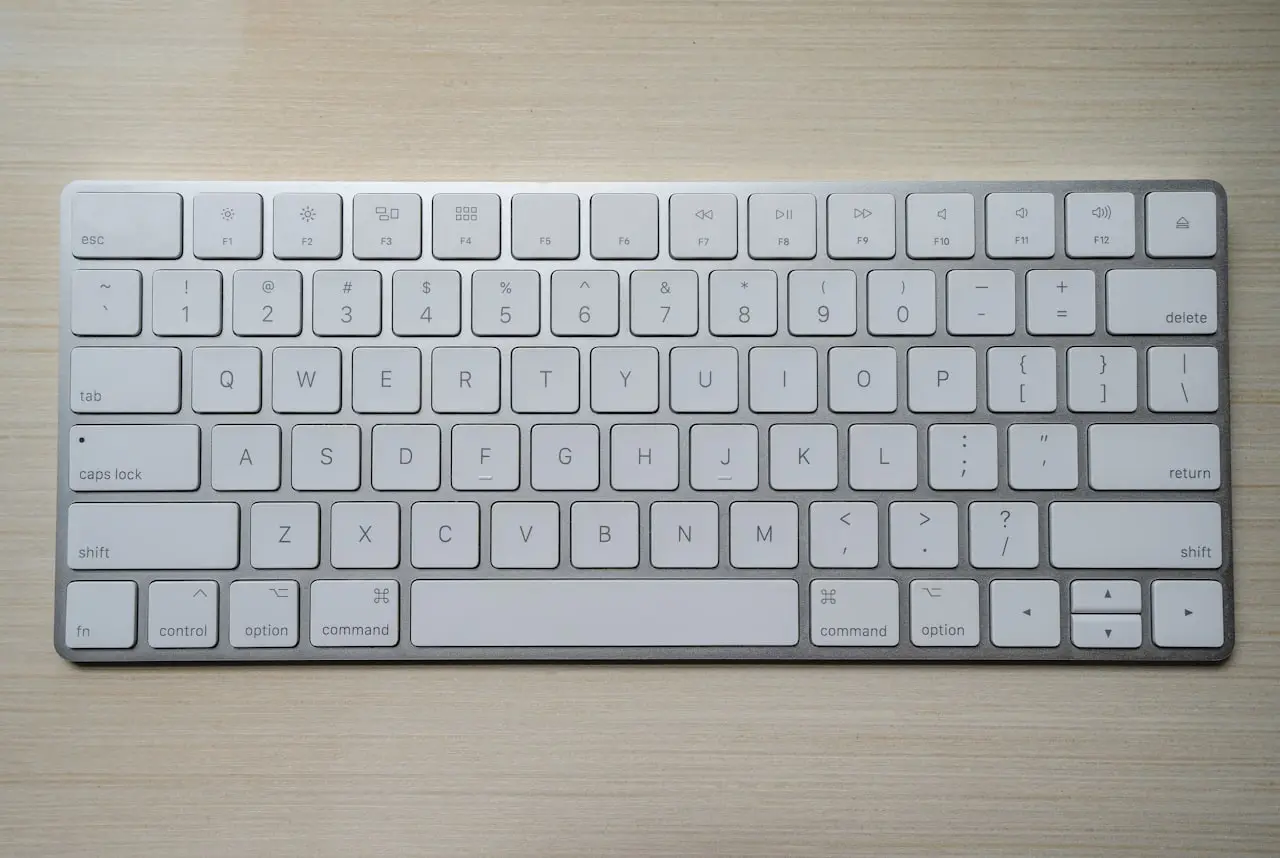
How to Fix a Stuck Keyboard Key on a Laptop
Unstick a jammed or sticky laptop key — crumbs, soda, a repeating letter, and when to replace the keyboard instead of reinstalling Windows.
A stuck keyboard key on a laptop is usually a crumb, dried soda, or a tired ribbon — not a reason to reinstall Windows. The same steps cover a jammed key, a sticky spacebar, and a letter that repeats on its own. Rule out the accessibility setting named Sticky Keys, prove the fault in BIOS, then clean. Replace the keyboard only if the key still sticks with Windows out of the picture.
MacBook owners: the mechanism is different. Use MacBook spacebar stuck, Caps Lock stuck on Mac, or spilled water on a MacBook keyboard.
How to unstick one keyboard key
- Shut the laptop down and unplug the charger.
- Hold it at an angle so the stuck key faces down.
- Use short bursts of compressed air at the gap around that key. Move the key gently with a fingertip between bursts.
- If you can feel grit, a soft dry brush at the edge is enough. Do not pour alcohol into the well.
- Boot and tap the key in a text field. If it still repeats, restart into BIOS and tap it there.
One key that fails in BIOS is hardware. One key that only fails in Windows can be a remapper, Filter Keys, or a game overlay. An external USB keyboard that types normally confirms the built-in board is the problem.
Sticky keys on a laptop (the physical kind)
Windows also has an accessibility feature called Sticky Keys. People searching “sticky keys on a laptop” usually mean keys that feel tacky or stay down, not that feature.
| What you notice | Likely cause | First move |
|---|---|---|
| One key stays down or needs a hard press | Crumb or hair under the cap | Angled air, then retest |
| Several keys feel syrupy after a spill | Soda, juice, or coffee residue | Stop typing; keyboard replacement is common |
| Keys feel fine, but Shift “sticks” in software | Accessibility Sticky Keys | Windows key + U → Keyboard → off |
| A letter types twice or forever | Membrane or switch chatter | BIOS test, then replace the keyboard |
Do not pop every keycap on a thin laptop to “deep clean.” The scissor clips snap, and the part under them is often a single membrane you cannot reseat by hand.
1. Disable accessibility traps
- Press Windows key + U to open Accessibility settings (Windows 11)
- Open Keyboard
- Turn off Sticky Keys, Filter Keys, and Toggle Keys for testing
- If a Sticky Keys popup appears when you press Shift five times, cancel and disable the shortcut
Why this matters: Filter Keys can make typing feel “stuck” or delayed, and Sticky Keys confuses modifier behavior. Prove the keyboard before you buy parts.
Also try Windows key + Ctrl + O only if you intentionally use On-Screen Keyboard for testing — useful when physical keys spam.
2. Prove hardware vs Windows
| Test | If problem continues | Meaning |
|---|---|---|
| New local Windows user | Yes | Not a per-user remapper |
| Safe Mode | Yes | Less likely third-party keyboard hook |
| BIOS/UEFI setup screen | Yes | Hardware / firmware-level input |
| External USB keyboard | No (external fine) | Built-in keyboard or its cable |
Enter BIOS/UEFI with the vendor key at boot (Esc, F2, F10, or Del — check your maker). Tap the suspect key. If it repeats in firmware menus, stop blaming Windows Update.
Malware causing a single stuck letter is uncommon. Hardware tests above settle arguments faster than random antivirus panic.
3. Safe cleaning that actually helps
- Shut down and unplug the charger
- Remove power if your model has a user-accessible battery (most modern ultrabooks do not)
- Tilt the laptop so crumbs fall out
- Short bursts of compressed air around the sticky key and nearby wells
- Soft dry brush for edges
- For surface stickiness only, a barely damp microfiber on the cap top — never drip liquid into the keyboard
What NOT to do:
- Do not soak the deck with alcohol or window cleaner
- Do not pry every keycap “for a deep clean” on thin OEM boards
- Do not use a vacuum with a metal tip that can ESD-zap or yank caps
- Do not keep typing through sticky soda — you grind sugar into the membrane
Sugary spills need professional cleaning or keyboard replacement more often than water. Same physics as Mac spills; for Apple-specific steps see /posts/macbook-sticky-keys-after-coffee.
4. Brand / mechanism reality checks
| Style | DIY note |
|---|---|
| Older chunky business laptops | Keycaps sometimes serviceable; still easy to break scissor feet |
| Modern thin consumer laptops | High clip-break risk; prefer air + full keyboard replacement |
| Mechanical aftermarket boards | Different world — this article is for built-in laptop keyboards |
| Backlit island keys | Liquids damage backlight films; expect wider failure later |
Dell, HP, Lenovo, ASUS, and Acer parts differ. Order by exact model (and sometimes country kit), not “15-inch HP keyboard.”
5. Software mitigations while you wait
- Turn on Filter Keys briefly to ignore rapid repeats (workaround only)
- Remap a dead key with PowerToys Keyboard Manager if one key is gone
- Use On-Screen Keyboard for password fields when a key doubles dangerously
- Plug in a compact USB or Bluetooth keyboard for real work
None of these repair the membrane. They keep payroll and email moving.
6. Replacement path: keyboard vs whole PC
Many Windows laptops let independents replace the keyboard deck or a ribbon-connected module for far less than a new machine. Ask for:
- Parts cost + labor quote in writing
- Whether the palm rest / battery must come out (labor time)
- Data safety plan if they must disassemble near storage
Replace the keyboard when:
- Cleaning failed twice
- Liquid hit multiple keys
- Keys chatter after a drop flexed the chassis
- BIOS test confirms hardware repeat
Consider broader liquid assessment if the machine also shows USB weirdness, trackpad failure, or power issues — corrosion travels.
7. When to stop DIY
Stop opening the laptop yourself if:
- It is under warranty with sealed chassis stickers you care about
- You smell burnt electronics or see corrosion under the key wells
- The laptop is a complex carbon-fiber / glued ultrabook and you lack guides
- You need the data more than you need a working built-in keyboard — use USB input and back up first
Related Windows recovery reading if the PC also blue-screens or behaves oddly after liquid: /posts/fix-windows-11-bsod. Overheating after crumbs blocked vents is a separate track: /posts/laptop-overheating-fix.
Prevention
- Keep drinks off the keyboard plane
- Shake out cases before sliding the laptop in
- Use an external keyboard at desks if you type all day — saves the built-in for travel
- Address sticky keys the same week; sugar gets worse as it dries
Disable accessibility false alarms, confirm the fault in BIOS, clean with angled air, then replace the laptop keyboard if chatter remains. A cheap USB keyboard is the correct bridge — not a full Windows reinstall.
Filter Keys as a temporary anti-repeat tool
If a key is spamming while you wait for parts:
- Enable Filter Keys
- Turn on Bounce Keys options where available
- Use an external keyboard for real work anyway
This is a bridge, not a repair. Disable Filter Keys once the hardware is fixed so typing does not feel laggy forever.
Liquid on Windows keyboards — same chemistry
Sugary drinks need professional cleaning or keyboard replacement. Do not pour rice into a Windows laptop any more than a Mac. If the machine also overheats after a sticky spill (vents gummed), see /posts/laptop-overheating-fix.
Ribbon cable reseats (advanced)
Some models fail a whole section of keys when the keyboard ribbon creeps out of the Zero Insertion Force connector. Reseating helps only if you know the exact disassembly. Photograph cable routes; force on ZIF locks breaks them.
Ordering the correct part
Use the full model code from the underside sticker or support app (not just “HP 15”). Language layouts (UK ISO vs US ANSI) matter — Enter key shape differs. Wrong layout is a painful return.
When a new laptop is rational
If labor + keyboard + residual liquid risk approaches the value of a refurb business laptop, redirect budget. Keep the SSD if it still works and migrate data first: /posts/ssd-not-detected / external backup practices in /posts/external-hard-drive-not-showing.
MacBook owners landing here
Apple mechanisms differ — start at /posts/macbook-stuck-keyboard-key or spill guides linked there.
Clean first, then consider a teardown
Use an Ordilend keyboard cleaner & laptop cleaning kit on Amazon before anyone pops keycaps. Convertible hinges (including Galaxy Book 360-class machines) trap crumbs at the keyboard well.
DIY note for home openers
Opening a laptop at home is safer with the right bits. For ribbon reseats after cleaning fails, use an iFixit Pro Tech Toolkit on Amazon instead of forcing oversized drivers that strip screws.
Frequently Asked Questions
Why does one key spam characters?
Debris under the key, liquid residue on the membrane, or a failing scissor switch. Filter Keys can hide the spam temporarily in software, but the hardware still needs cleaning or replacement.
Is it safe to remove every keycap?
On many modern thin Windows laptops, no. Retention clips snap and replacements are fiddly. Remove one key only if you have a model-specific guide and accept the risk.
Could malware cause stuck keys?
Rare. Test in BIOS/UEFI setup or from a bootable USB environment. If the key still repeats there, it is hardware, not a virus.
How do I unstick a keyboard key on a laptop?
Shut down, tilt the laptop, and use short bursts of compressed air around the stuck key. If it still repeats in the BIOS menu, the switch or membrane is damaged and needs a keyboard replacement, not a Windows reinstall.
What if the laptop keys are sticky, not just one key?
A sweet drink leaves residue under several caps. Surface wiping will not dissolve it. Clean with air first; if multiple keys stay tacky, plan on a keyboard or palm-rest replacement.
As an Amazon Associate, I earn from qualifying purchases. Affiliate disclosure
Related fixes
MacBook Space Bar Stuck or Double Spacing?
Fix a MacBook Pro or Air spacebar that sticks, needs extra force, or types two spaces — debris under the wide key, and when the top case is the real fix.
Read the fixCaps Lock Stuck on Mac? Everything Types in Capitals
MacBook Caps Lock stuck on, the light stays lit, or every letter is a capital — Sticky Keys, Keyboard Viewer, and a failed key switch.
Read the fixSpilled Water on a MacBook Keyboard? Do This First
Water, coffee, or a drink on a MacBook Pro or Air keyboard — power off, drain, skip the rice, and what to do in the first hour.
Read the fix